
How to Host a Last Brain Standing Game Night for Streamers
By GameBuddies Team — 2026-03-31
What Is Last Brain Standing?
Last Brain Standing is an elimination trivia game where players answer questions one by one, then vote on who gave the worst answer. The loser takes a hit — and with only 3 lives each, the pressure builds fast. The last player (or team) standing wins.
If you follow the German streaming scene, you probably recognize the format. It's inspired by "Der Dümmste Fliegt", the quiz show format popularized by creators like Reved and PietSmiet. We built Last Brain Standing to make that experience accessible to any streamer, in any language, with no setup headaches.
Whether you're running a chill community game night or a high-stakes tournament arc, this guide covers everything you need to get it on stream.
Setting Up Individual Mode — The Classic Format
Individual mode is the simplest way to play and perfect for your first stream with the game.
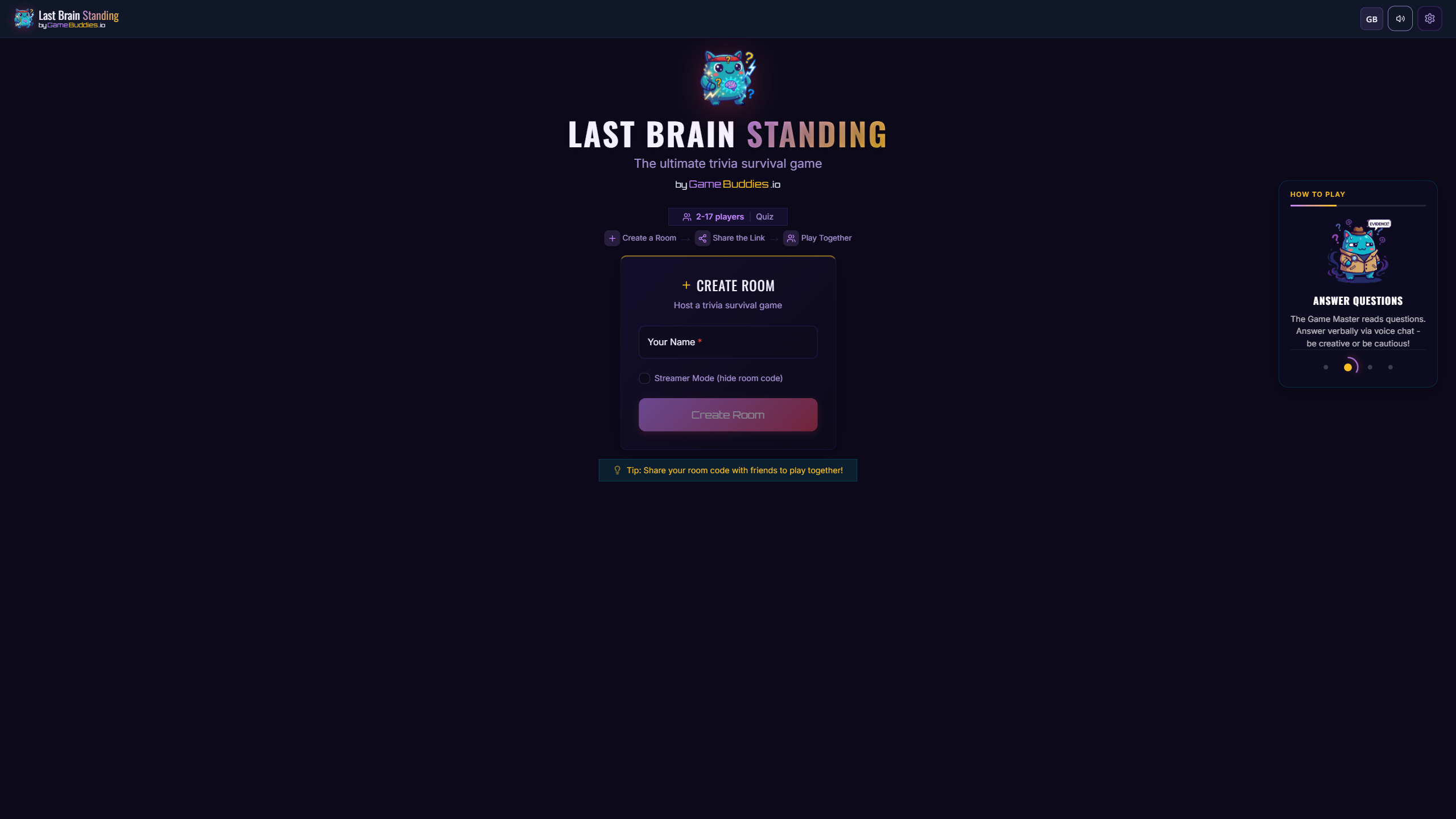
- Head to gamebuddies.io/lastbrainstanding and create a room
- Share the room link with your players — they join directly in the browser, no download needed
- You can have 3 to 12 players in a single game
- Each player starts with 3 lives
- After each round of answers, everyone votes on who performed worst — that player loses a life
- Last person standing wins
The host controls the game flow: starting rounds, advancing questions, and managing the pace. This gives you full control over the stream's rhythm.
Setting Up Team Mode — Shared Lives, Bigger Drama
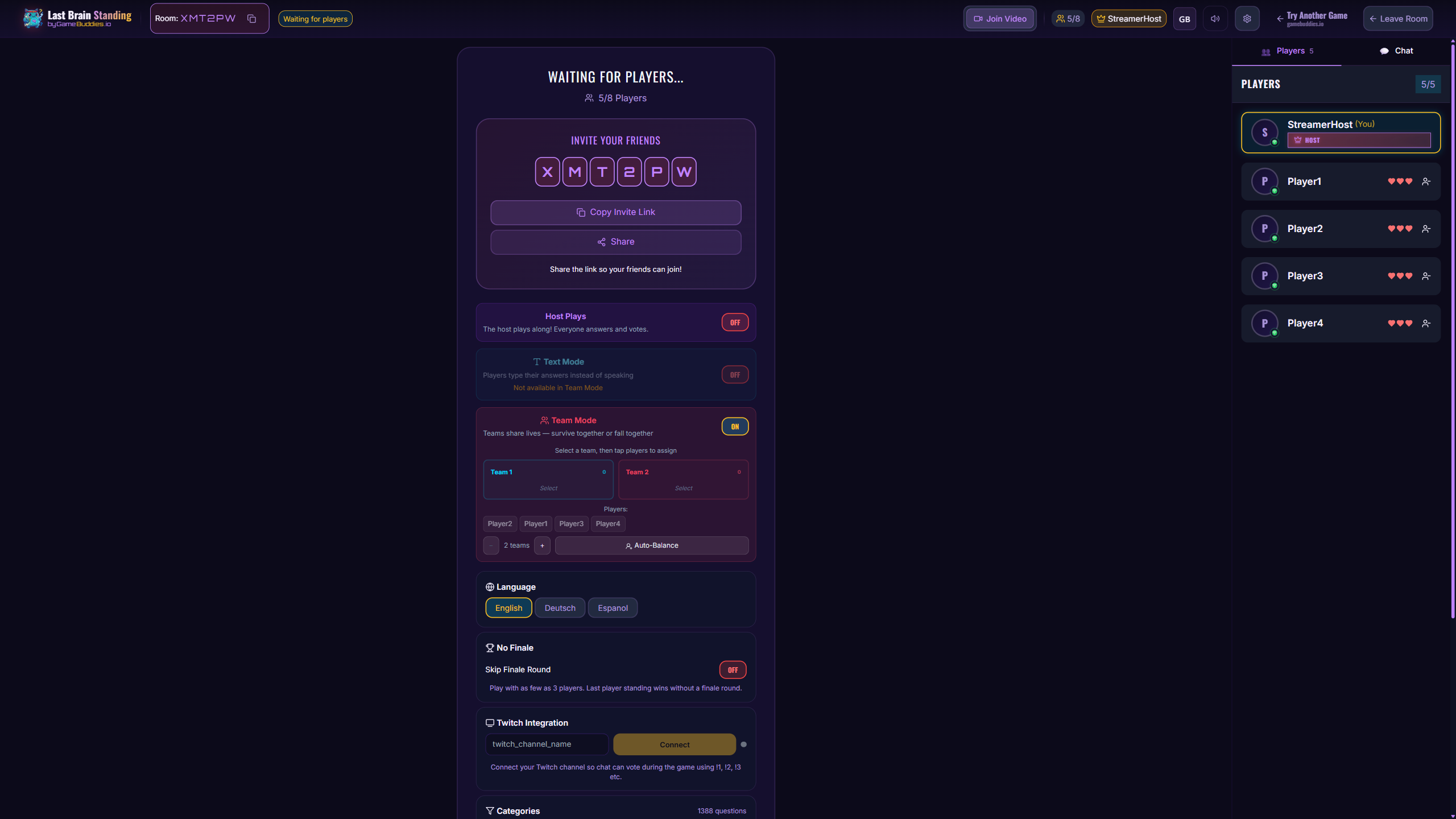
Team Mode takes the format to the next level. Instead of individual players, you form 2 to 8 teams where teammates share a pool of lives.
- Create a room and enable Team Mode in the game settings
- Players join and get assigned to teams (or you can set teams manually)
- Each team shares 3 lives — if one teammate gives a bad answer and gets voted out, the whole team pays the price
- The team broadcast overlay shows team cards arranged around a centered host view, perfect for stream layouts
Team mode works brilliantly for collaborations. Pair up streamers, let chat pick the teams, or run a crew vs. crew format — the shared lives mechanic creates natural tension and hilarious blame moments.
Using the Broadcast Overlay for OBS
Last Brain Standing has a built-in Broadcast Overlay designed specifically for streaming. This is your main view for showing the game with live video chat on stream.
- In the game lobby, open the broadcast window — this gives you a clean, stream-ready view with the host centered and player/team cards arranged around it
- Use the lock feature to freeze the layout for OBS window capture — this prevents the overlay from shifting during gameplay
- Add the broadcast window as a Window Capture source in OBS
- Crop out the unlock strip at the edge of the window so viewers only see the game layout
- Position and resize to fit your stream layout
The overlay is designed to look good at any resolution. For team mode, each team gets its own card, making it easy for viewers to follow the action. This is the best way to show the full game experience with webcams on stream.
NEW: OBS Browser Source Overlay
In addition to the broadcast window, Last Brain Standing now also offers an OBS Browser Source Overlay with transparent, draggable widgets. This gives streamers even more freedom to customize their stream layout.
How to Set It Up
- In the game lobby, click the "Open OBS Overlay" button (host only)
- A setup wizard walks you through the process: copy the overlay URL, add it as a Browser Source in OBS (1920×1080 recommended), toggle which widgets you want, choose a layout preset, and go live
- The overlay connects to your room automatically and updates in real time
Available Widgets
The overlay includes 18 draggable widgets that you can toggle on/off and reposition freely:
- Scoreboard — player names, lives, and scores
- Timer Bar — answer countdown with color changes
- Phase Badge — shows the current game phase (answering, voting, results)
- Question Display — the current question text
- Voting Progress — who has voted and who hasn't
- Vote Tally — vote results with bars
- Twitch Vote Chart — live Twitch chat voting visualization
- Turn Indicator — whose turn it is to answer
- Winner Banner — dramatic winner announcement
- Elimination Alert — animated elimination notification
- Webcam Frames — styled frames for player webcams
- Lower Third — name/title bar for professional look
- And more: countdown, shot clock, finale scoreboard, round recap, watermark
Layout Presets
Choose from pre-built layout presets to instantly arrange your widgets — or drag each widget to create your own custom layout. Layouts are saved to your browser so they persist across sessions.
Use the Browser Source Overlay on its own for a fully custom stream layout, or combine it with the Broadcast Window to get both webcam feeds and transparent game data widgets on screen.
Tips for Engaging Your Audience
The real magic of Last Brain Standing on stream is audience participation.
- Twitch Chat Voting: Enable Twitch chat integration so your viewers can vote alongside the players on who gave the worst answer. It adds a whole layer of interaction and keeps chat engaged every single round.
- React to answers live: Don't rush through questions. Let players explain their reasoning — the wrong answers are where the entertainment lives.
- Build rivalries: Call out voting patterns. "Chat, they voted for you AGAIN!" drives engagement like nothing else.
- Use polls between games: Ask chat who they think will win the next round, or let them pick categories.
Audio & Communication Setup
Last Brain Standing has built-in video chat, but for streaming we strongly recommend a different setup:
- Mute in-game audio entirely — the built-in voice chat is convenient for casual play, but it doesn't give you the audio control you need on stream
- Use Discord for voice chat instead — you get better audio quality, individual volume controls, noise suppression, and the ability to manage who's heard when
- This also avoids echo issues when multiple streamers are in the same game
- Keep game sound effects on if you like — they add to the atmosphere without interfering with voice
This setup gives you full control over your audio mix in OBS, which is critical for a polished stream.
Pro Tips
- Custom Questions: You can add your own questions to the game. This is gold for themed streams — inside jokes, community lore, or topic-specific trivia that your audience will love.
- Category Selection: Pick specific categories to match your stream's vibe. Running a science stream? Lock it to science questions. Variety night? Mix everything together.
- Streamer Mode: Enable streamer mode to hide the room code from the game screen. This prevents stream snipers from joining your game uninvited — your players join via the direct link you share privately.
- Pace yourself: A good Last Brain Standing session runs 30–60 minutes. If you're doing multiple rounds, take short breaks between games to let chat react and discuss.
- Test before you go live: Do a dry run with a friend or mod to make sure your OBS layout, audio routing, and broadcast overlay are all working before your audience shows up.
Last Brain Standing is available now at gamebuddies.io/lastbrainstanding — free, browser-based, no downloads. Set up your game night and show your audience who really is the last brain standing.
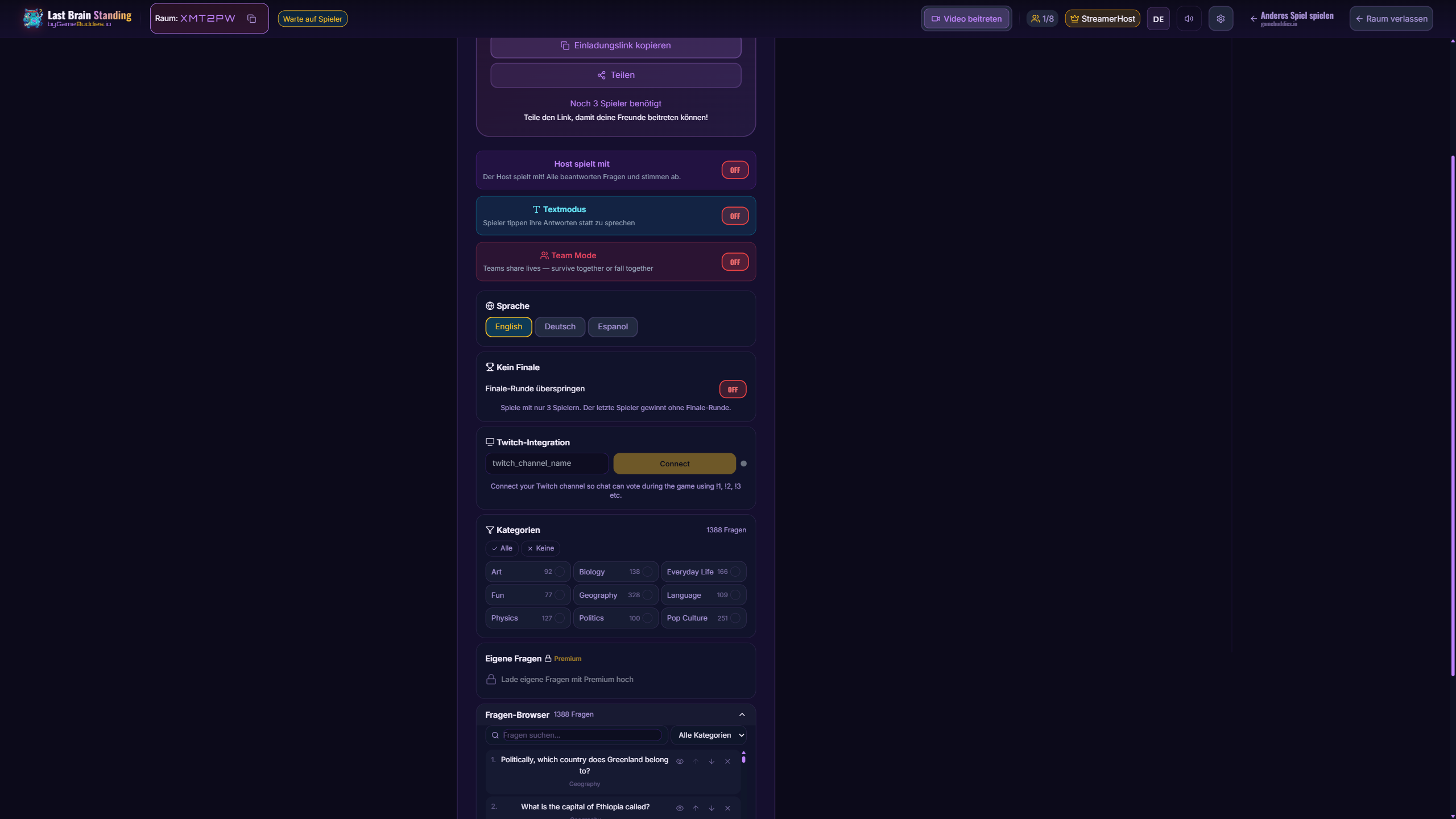
Custom Questions & Question Browser
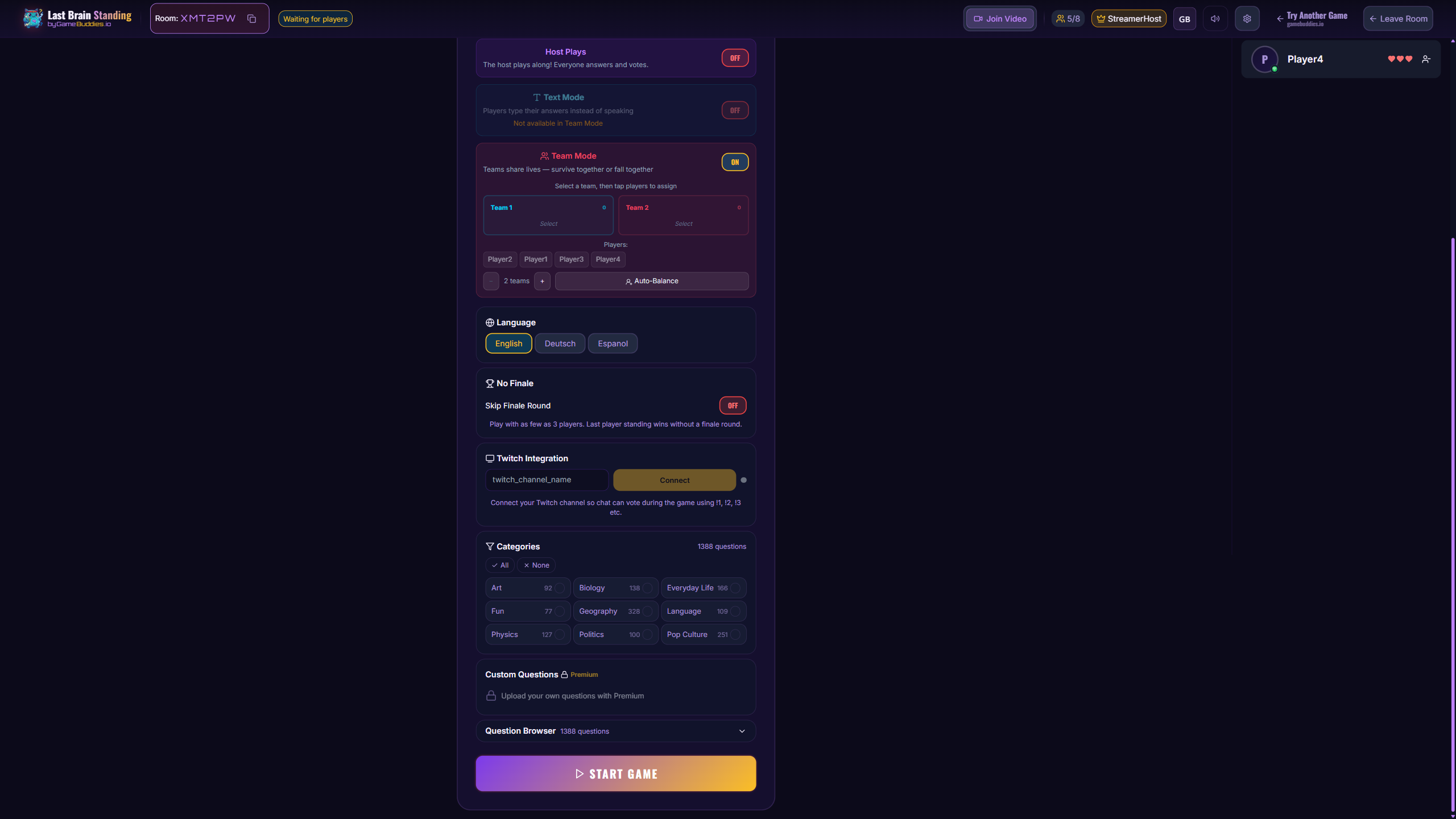
One of the most powerful features for streamers is custom questions. You can create questions tailored to your community — inside jokes, channel lore, or topic-specific trivia that your audience will love.
- Download the template from the game settings — it's a simple spreadsheet format with question and answer columns
- Fill it in with your own questions and upload it back in the host settings
- You can mix custom questions with the built-in ones — select "Mix" mode to combine your questions with the premade pool, or use "My Content" to play only your own
- Custom questions require Premium, but if you're a streamer looking to try it out, join our Discord and send a message — we're happy to help you get set up and can even assist with preparing special features for your stream
The Question Browser in the host settings lets you see exactly which questions will appear in your game. You can:
- Search and filter questions by category
- Reorder questions by dragging them up or down — control exactly what gets asked first
- Remove individual questions you don't want
- Preview answers before the game starts so you're prepared as the host
This gives you complete control over the content of your stream — no surprises, unless you want them.
Related Reading
- Free Games to Play With Your Twitch Chat (No Bot, No Extension, No Download)
- How to Host a Community Game Night on Twitch (Setup, OBS, Chat Commands, Moderation)
- Twitch Community Games: What They Are, How Viewers Join, and 8 Free Formats to Run
- How to Play Tier Battle: Rules, Scoring and Strategy for the Ranking Party Game