
How to Host a Community Game Night on Twitch (Setup, OBS, Chat Commands, Moderation)
By GameBuddies Team — 2026-08-25
Hosting a community game night on Twitch takes four things: a game your chat can play from chat, a room your stream snipers can't find, a clean capture in OBS, and a plan for who plays when. This is the exact setup for doing it with the free browser games on GameBuddies.io — no bot, no extension, nothing to install — from the announcement the day before to the "next game" rotation, including the chat commands your viewers type and what to do when someone spams !1.
Before the stream: pick the format and announce it
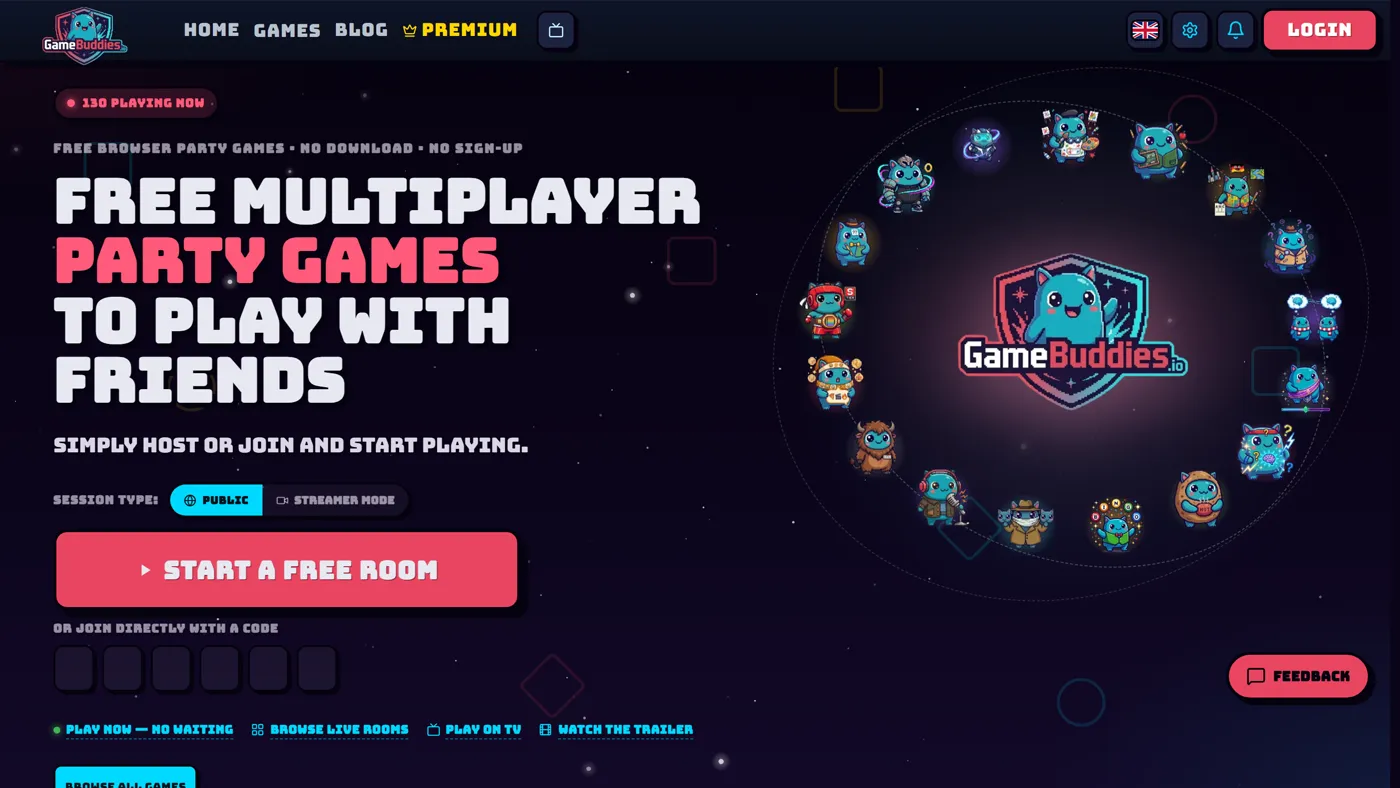
Decide the shape of the night first, because it changes the invite. A chat-only night (you versus chat in Tier Battle) needs no guests and no links. A table night (Bad Actor, Last Brain Standing, Letter Rush with community members in the seats) needs players lined up before you go live, or you'll spend the first twenty minutes recruiting.
For a table night, post in Discord the day before: the time, the games, and how to claim a seat — a reaction on the post is enough. Fill the first table from that list and tell everyone else that chat plays from the first minute, which is true. If you want the format comparison before you choose, that guide covers eight formats and which channel sizes they suit.
Add the chat commands to your Twitch panels or a !commands bot response now, so you don't have to explain them on air every time. The cheat sheet is further down.
Step 1: Create the room in Streamer Mode
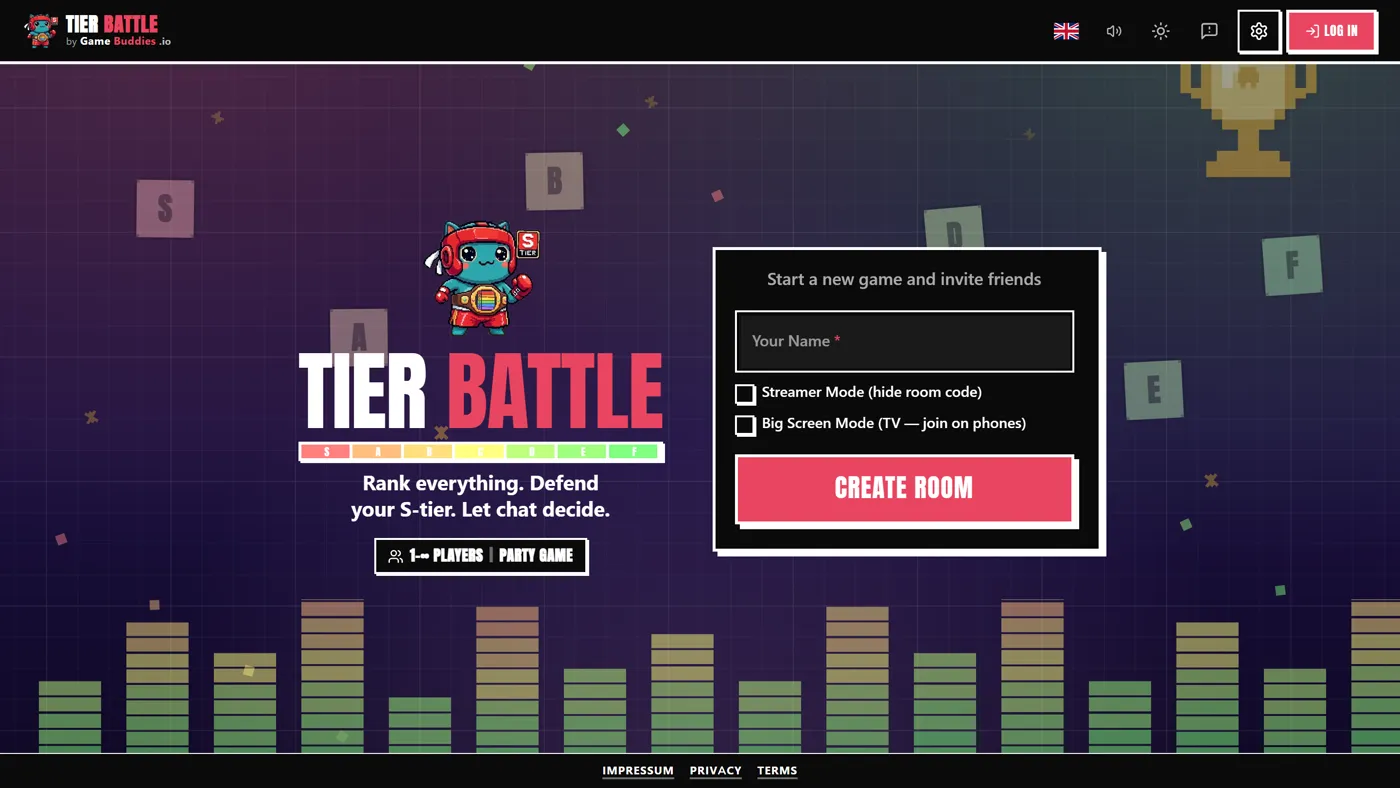
Go to the game you're starting with — Tier Battle is the standard opener because it runs before any guest arrives — and create a room with the Streamer Mode toggle on ("Hide room code from other players").
Streamer Mode does three things at once: the room becomes private, the room code is hidden from every view you might capture, and a secure invite link is copied to your clipboard. That link, not the code, is what you send to guests — paste it into your Discord thread or DM it to the people who claimed seats. The QR code in the lobby shows only the private link, never the code, so it's safe on screen too.
If you created the room without Streamer Mode and the code has been on stream for even a second, don't toggle it on after the fact — make a fresh room. The game will remind you of exactly this.
Step 2: Connect your Twitch channel (30 seconds)
In the lobby, open the host settings and find the Twitch section. Type your channel name — just the name, no URL, no # — and hit Connect. A red "Live: twitch.tv/yourchannel" badge appears in the lobby (in Tier Battle it's visible to every player, so your guests know the audience is in), and the settings panel shows the one-line hint for that game, for example "Viewers vote with !1, !2, !3 in chat during the voting phase".
What happens under the hood matters for your peace of mind: the game opens an anonymous, read-only connection to your chat. It never posts a message, never requests permissions, never joins your channel as a bot. There's no OAuth screen, no mod role to hand out, and nothing to revoke afterward. Disconnect is one click in the same panel.
Only the host can connect or disconnect Twitch, and the connection belongs to the room — if you switch to a new room, connect again.
Step 3: Set up OBS
You have two capture options, and most streamers use both.
Option A — capture the game tab. The simplest route: a Window Capture of your browser. You'll see the full game UI including your own controls, which is fine for a chat-only night.
Option B — the broadcast window. Every Twitch-connected game has a dedicated broadcast window: a popup built for capture, with the game stage front and center, round, phase and timer badges, and a webcam strip for your guests down the right side. Open it with the broadcast icon in the game header (the radio-wave button — the tooltip reads "Open broadcast window") or press B. It needs you to be in the room's video chat and it's a desktop feature; on mobile the button isn't there.
The window opens in setup mode with a small settings panel: toggle player names, the room code (off by default, and always off in Streamer Mode), and per-game overlays, then click Lock for capture. The panel disappears, the view goes fullscreen inside the popup, and a thin unlock strip stays on the right edge — crop it out in OBS. Add the popup as a Window Capture in OBS (it's a separate browser window, so pick it by title). Your layout choices are remembered for the next room.
For Last Brain Standing, add its overlay too. LBS keeps the live chat-vote chart in a separate OBS overlay rather than the game view. Add a Browser Source pointing at the game URL with ?overlay=true&room=YOURCODE; its settings include a "Twitch Votes" widget that lists every player with a live bar. The Last Brain Standing streamer guide walks through the whole overlay.
Finally, set your stream category to GameBuddies.io — it's an official Twitch category, and streaming under it puts you on the Now Playing page and in front of viewers browsing for party games instead of lost in Just Chatting.
Step 4: Teach chat the commands
Each game listens for a different command, and only during the phase where it makes sense — a !3 typed during the drawing phase is simply ignored, so nobody can break anything by typing early.
| Game | Viewers type | When | What it does |
|---|---|---|---|
| Tier Battle | !1, !2, !3 … |
During ranking, when chat's ballot is up | Picks one item; vote counts build chat's own tier list, which players are scored against |
| Bad Actor | !1, !2, !3 … (or !vote 2) |
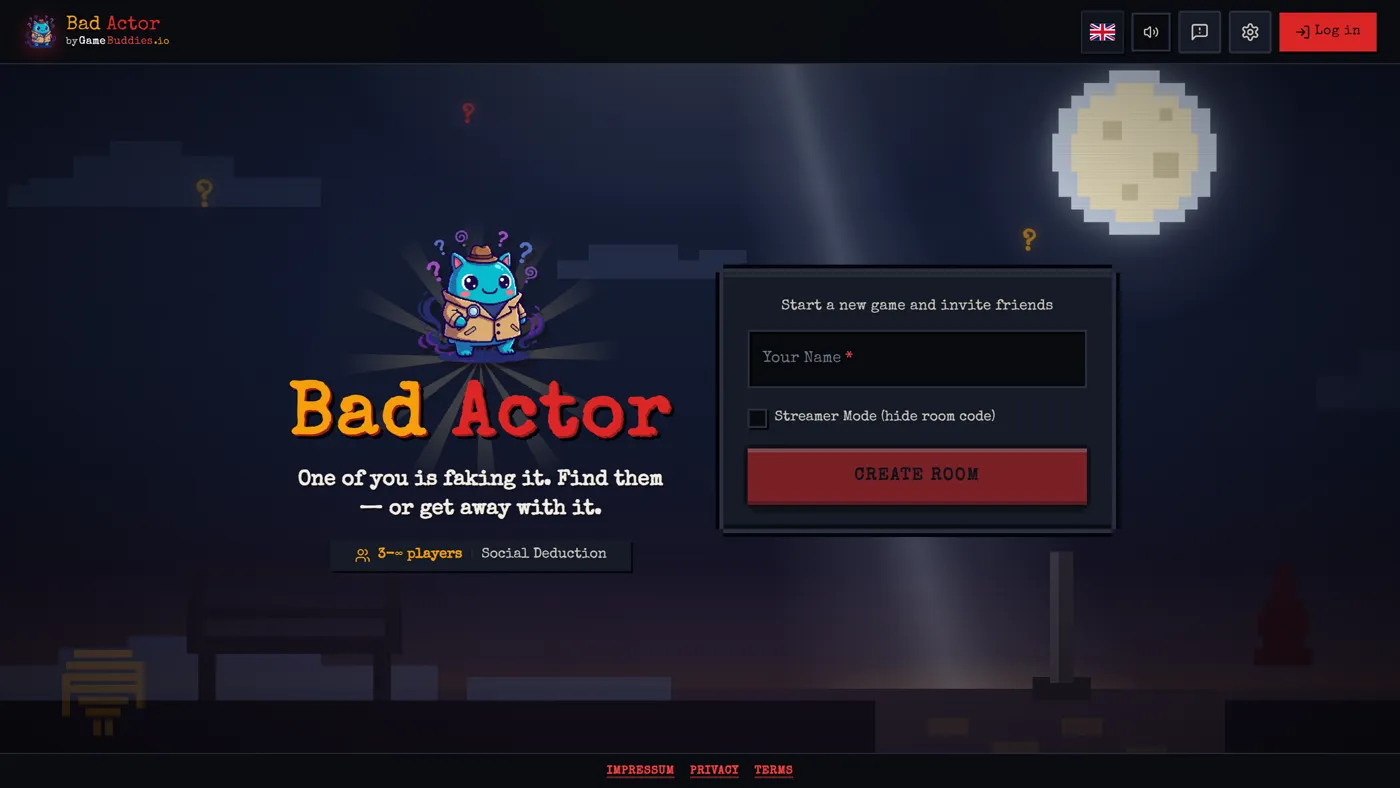
Voting phase | Votes for a suspect; shown as a live bar graph next to the players' votes |
| Canvas Chaos — Masterpiece mode | !1, !2, !3 … |
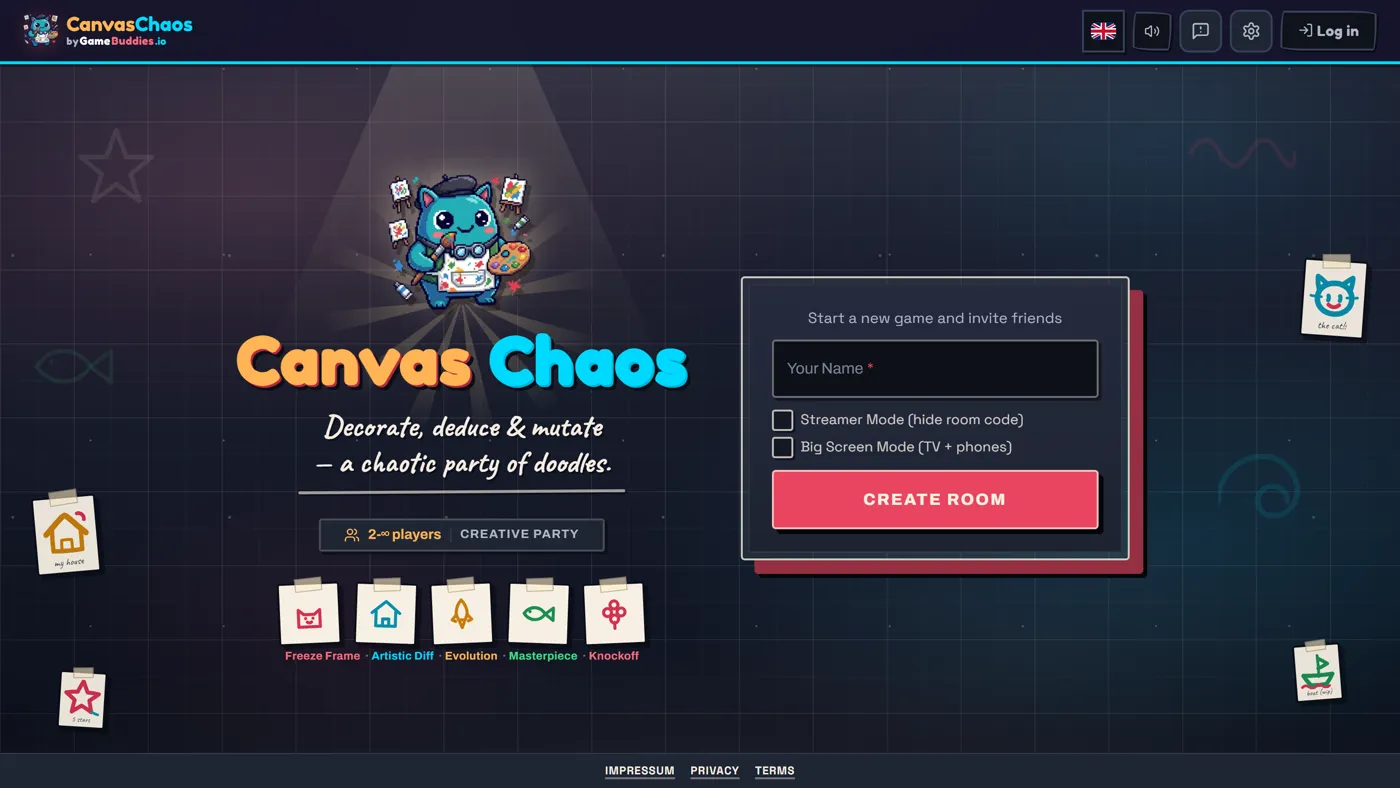
Rating phase | Votes for a drawing; chat becomes an extra rater, five stars to its favorite |
| Letter Rush | !valid or !invalid |
When the host puts an answer to chat | Settles a disputed answer; the verdict decides the points |
| Last Brain Standing | !1, !2, !3 … (or !vote 1) |
Voting phase | Chat's favorite gets one collective vote against the players' votes |
Three rules worth telling chat once:
- One vote per person, and the latest counts. Typing
!2and then!5moves your vote; it doesn't double it. Spam changes nothing. - The number is the position on screen. Ballots and players are numbered in the game view, so "vote for Lena" means "type the number next to Lena".
- Only the right phase counts. Commands outside the voting or ranking phase are dropped silently.
Say the command out loud the first time each phase comes around ("chat, !valid or !invalid on Quesadilla") — after two rounds they'll be doing it before you ask.
Step 5: Run the rotation
Open with a chat-only game while guests arrive. Tier Battle against chat is the standard warm-up: with Twitch connected it starts with just you, chat's votes are visible on the ballot as they come in, and you can talk through the reveal. When the guests are seated, switch to the table game.
Rotate one or two seats between games so more regulars get a turn. The lobby makes this painless: anyone who opens your invite link while a game is running is seated as a spectator — they see the game, and they're promoted to a player automatically when the current game ends. Kick the players who are done from the lobby, and the spectators fill their seats for the next game without you re-sending links.
Guests don't need a Discord call on the side. Every room has video chat built in, and the webcam strip in the broadcast window is fed from it, so their reactions land in your capture with no extra scenes.
Step 6: Moderation and trolls
Community nights attract two kinds of trouble: people trying to get into the room, and people trying to spam the vote. The setup above handles both, but it helps to know why.
Nobody can find a Streamer Mode room. The code isn't shown anywhere you capture, the room is unlisted, and the private link is only in the hands you put it in. If a link leaks, make a new room — ten seconds — and re-send it to the people who should have it.
Vote spam doesn't stack. Every game counts one vote per Twitch username, so a troll typing !1 fifty times is one vote. A brigade of alt accounts is the only way to move a vote, and Twitch's own tools handle that: turn on follower-only or slow mode for the night, or let mods time people out as usual. The game reads whatever chat allows through.
You control when chat's vote closes. In Bad Actor, voting doesn't end automatically while Twitch is connected — the game waits for you to click End Voting after the players have voted, so you decide how long chat gets. In Letter Rush, chat only judges the answers you choose to put to it. In Tier Battle and Last Brain Standing, chat's influence is bounded by design: chat's list is one truth to be scored against, and chat's vote is one vote at the table.
Kicking and names. Hosts can kick any seated player from the lobby, and Streamer Mode means a kicked troll can't come back without the link. Guests pick their own display names, so brief your table on what's acceptable if your stream is family-friendly.
A 90-minute run sheet
| Time | Segment | Who plays | Why here |
|---|---|---|---|
| 0:00 | Tier Battle, one round vs. chat | You + chat | Runs with nobody else; chat learns !N while guests arrive |
| 0:15 | Bad Actor, two rounds | 4–6 guests + chat votes | Highest energy, loud reveals, easy rules |
| 0:45 | Letter Rush, one game | 3–5 guests, chat judges | Chat gets direct power over the score; swap a seat first |
| 1:05 | Canvas Chaos, Masterpiece mode | 4–8 guests + chat votes | Low-explanation, clip-friendly reveal; swap a seat again |
| 1:25 | Tier Battle finale | Guests + chat as the truth | Ends on a scoreboard chat decided |
Adjust for your chat: a five-viewer channel can happily run ninety minutes of Tier Battle and Letter Rush with two guests; a channel with a long sign-up list should rotate seats every game and keep rounds short.
Troubleshooting
Chat's votes aren't showing up. Check the phase first — votes only count during ranking, voting or rating. Then check the game: in Canvas Chaos, chat votes only in Masterpiece mode; in Last Brain Standing, the chart lives in the OBS overlay, not the game view.
The Live badge disappeared. The Twitch connection belongs to the room. If you started a new room, or the game reconnected after a hiccup, open the host settings and connect again.
The broadcast button isn't there. It appears once you've joined the room's video chat, and only on desktop. It's also hidden inside the Discord Activity version of the games.
A viewer says their vote didn't count. The latest command per username wins, so if they typed !2 and then !3, their vote is on 3. Commands with a wrong number — a !9 when there are five players — are ignored.
My guest can't join. Make sure you sent the private invite link — in Streamer Mode the code is hidden on purpose, so the link is the only thing your guests get.
FAQ
Do I need a bot, an extension or Twitch Affiliate?
No to all three. The games read public chat over an anonymous connection. No bot joins your channel, no extension needs approving, and you don't need Affiliate — chat commands aren't Bits or channel points.
Can I run a community night with zero guests?
Yes. Tier Battle starts with just you when Twitch is connected, and your chat is the opponent. Gartic-style "you draw, chat guesses" games work the same way; the chat games comparison lists the ones that need no table.
How do viewers get a seat without seeing the code?
Send the private invite link that Streamer Mode copies for you — through Discord, a DM or a mod. Viewers never need the code, and everyone without the link keeps playing from chat.
What resolution and layout does the broadcast window use?
It opens at 1280×720 and scales with the window, with the game stage filling the left and a webcam strip pinned to the right. Lock it, then resize the OBS source as you like; the layout is designed to stay readable at stream resolutions.
Does it cost anything?
No. Games, Twitch integration, video chat and the broadcast window are free, with no download and no sign-up for guests. Regular streamers can get lifetime Premium free via the Discord link on the streamer page.
Go live tonight. Create a room in Streamer Mode at gamebuddies.io/streamers, type your channel name, press B for the broadcast window, and let chat pick the first tier list while your guests trickle in. If you're still choosing games, Free Games to Play With Your Twitch Chat compares every free option, including the ones that aren't ours.